
Data Flow
SuperPlane is an event-driven workflow engine. Every node on the canvas emits a payload, and other nodes subscribe to these events to create workflows. This model enables flexible, composable automation pipelines.
How It Works
Section titled “How It Works”When an external event occurs (like a GitHub push), it triggers a node on your canvas. That node processes the event, emits a payload, and downstream nodes that subscribe to it receive the data and continue the chain.
flowchart LR
    External[External Event] --> Trigger[Trigger Node]
    Trigger -->|payload| Action[Action Node]
    Action -->|payload| Next[Next Node]
Each node in the workflow:
- Receives an event from its subscribed sources
- Processes the event (executes an action, transforms data, etc.)
- Emits a payload for downstream nodes
As the workflow executes, payloads from each node accumulate into a message chain. Any node can access data from any upstream node in this chain using expressions.
Runs and Run Items
Section titled “Runs and Run Items”Understanding how SuperPlane tracks execution helps when working with data flow.
Run Items
Section titled “Run Items”A run item is a single execution within a single node:
- For trigger nodes: a single received event (e.g., a GitHub push event)
- For action nodes: a single execution (e.g., running a GitHub workflow)
Each run item produces a payload that downstream nodes can access.
A run is a collection of run items and the dependencies between them. It represents a complete workflow execution from start to finish.
- Starts with a root event — the first event that triggered the workflow (usually from a trigger node)
- Grows as the workflow executes and each node adds its run item to the chain
- Tracks the full execution history and data flow
flowchart LR
    Root[Root Event] --> Item1[Run Item 1]
    Item1 --> Item2[Run Item 2]
    Item2 --> Item3[Run Item 3]
    Item1 --> Item4[Run Item 4]
    Item4 --> Item3
The Message Chain
Section titled “The Message Chain”As a run executes, each node’s output is added to a message chain. This chain is accessible via the $
variable — think of it as a message bus that streams all outputs to your current node.
How It Works
Section titled “How It Works”Consider this workflow:
flowchart LR
    GitHub[GitHub onPush] --> Filter[Filter] --> Deploy[Deployment]
When the workflow executes, each node adds its output to $:
{ "GitHub onPush": { "ref": "refs/heads/main", "commit": "abc123" }, "Filter": { "passed": true }, "Deployment": { "status": "success", "url": "https://app.example.com" }}From the Deployment node, you can access any upstream output:
$['GitHub onPush'].ref // "refs/heads/main"$['Filter'].passed // trueYou can also use root() to access the original event that started the run, and previous() to access
the immediate upstream node. See the Expressions page for details.
Exploring Runs on the Canvas
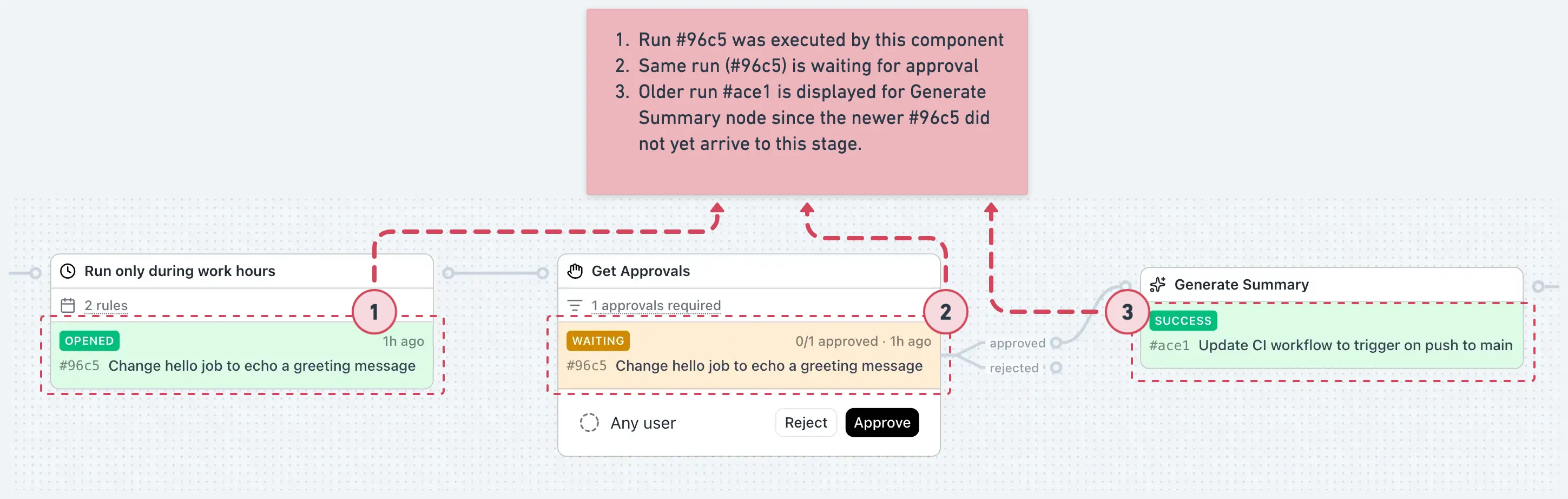
Section titled “Exploring Runs on the Canvas”The workflow you see on the canvas is dynamic — it’s not a single run, but a live view where multiple runs can execute simultaneously.
Node Status
Section titled “Node Status”Each node on the canvas shows a quick overview of its current or most recent run item.
Run History
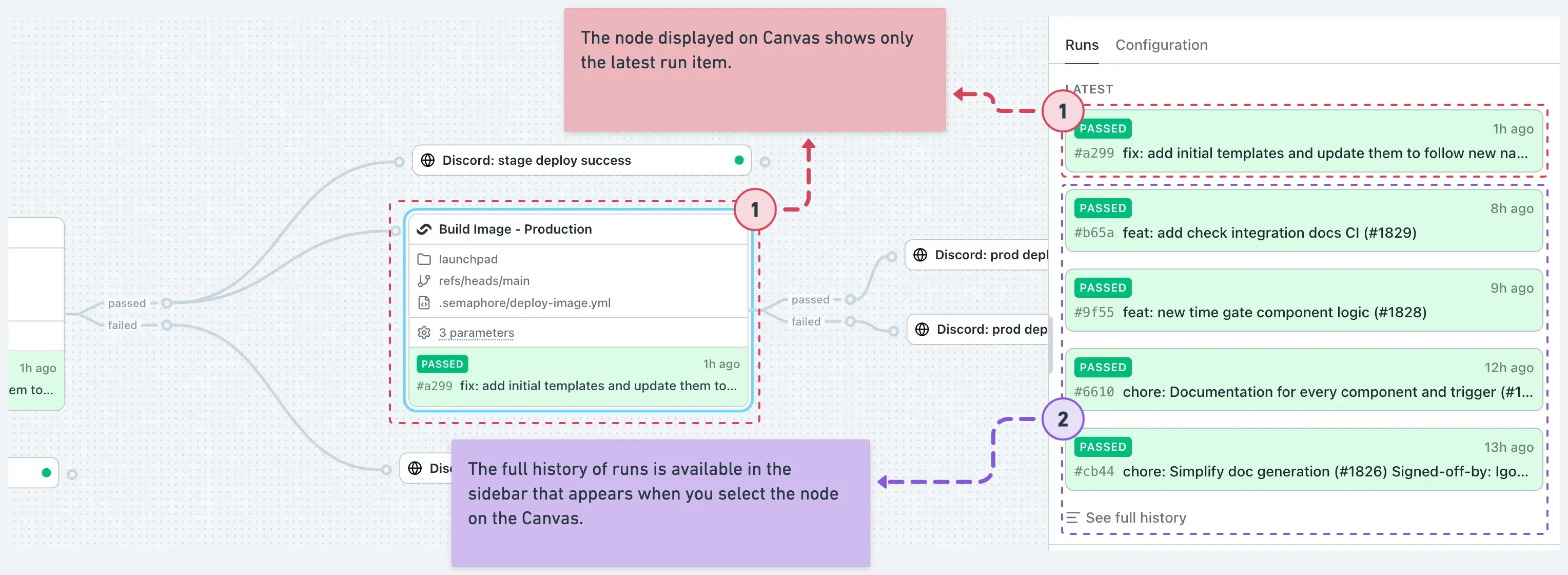
Section titled “Run History”Click on any node to open the sidebar. The sidebar shows the run history — all executions or events that have passed through this node, along with each execution’s result.
Run Chain
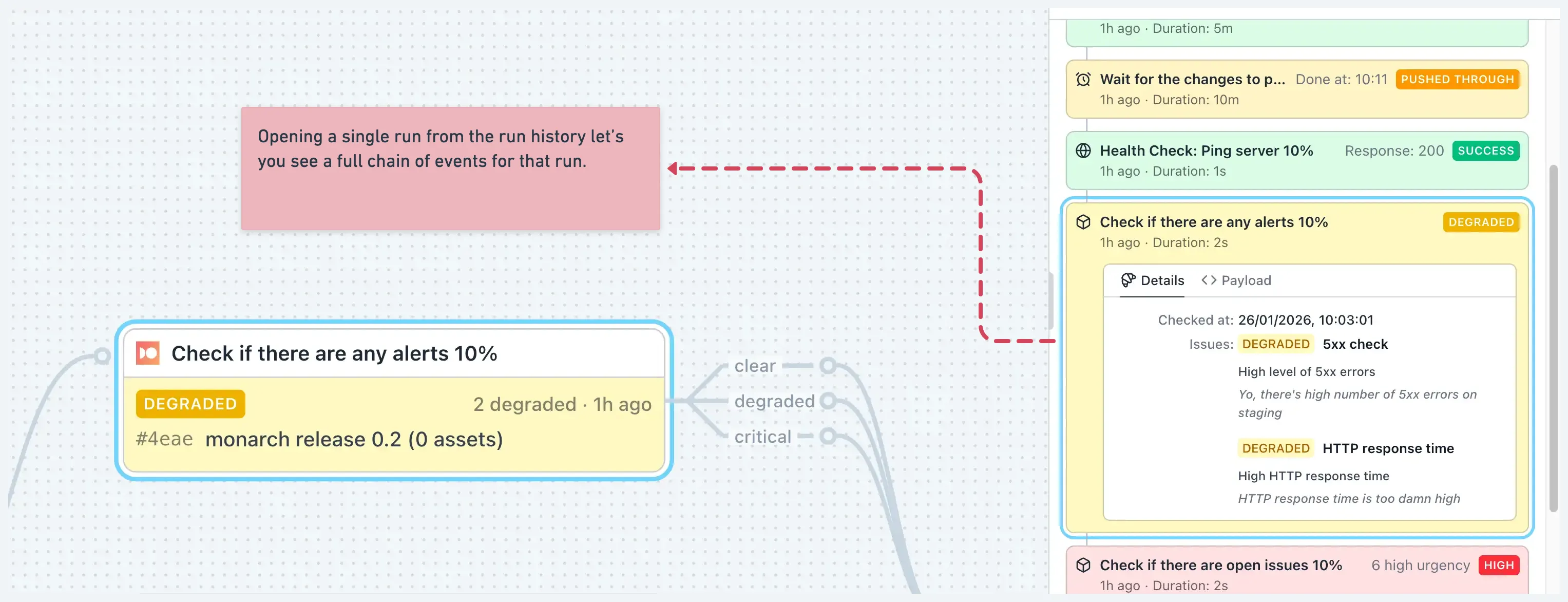
Section titled “Run Chain”Click on any item in the run history to see the full run chain. This shows all run items from all nodes that executed as part of that particular run.
Inspecting Run Items
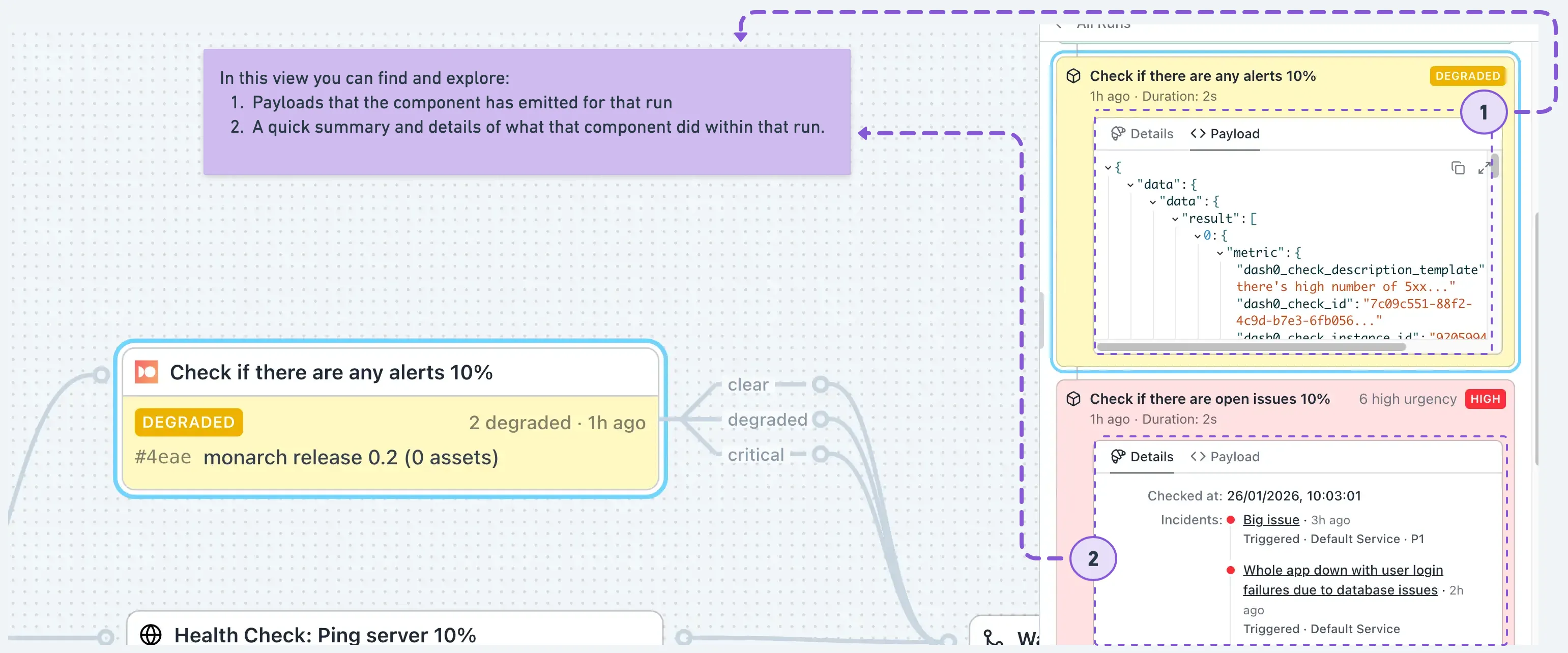
Section titled “Inspecting Run Items”In the run chain view, the node you were inspecting is preselected. You can click on any other run item in the chain to explore its details and payload.
Payloads
Section titled “Payloads”Every node emits a payload — a JSON object containing data from its execution.
Trigger Components
Section titled “Trigger Components”Trigger components listen to external resources and emit the event data as their payload.
- Connect to external systems via webhooks or integrations
- Emit events when something happens externally
- Payload contains the raw event data from the external system
Examples: GitHub onPush, GitHub onRelease, Slack onAppMention
Action Components
Section titled “Action Components”Action components execute operations and emit execution results as their payload.
- Subscribe to events from upstream nodes
- Execute operations on external systems
- Payload contains execution results and any returned data
Examples: GitHub runWorkflow, Slack sendMessage, HTTP request
Output Channels
Section titled “Output Channels”Nodes can emit through one or multiple output channels. Channels let you route data based on different outcomes.
Example: Pass/Fail Routing
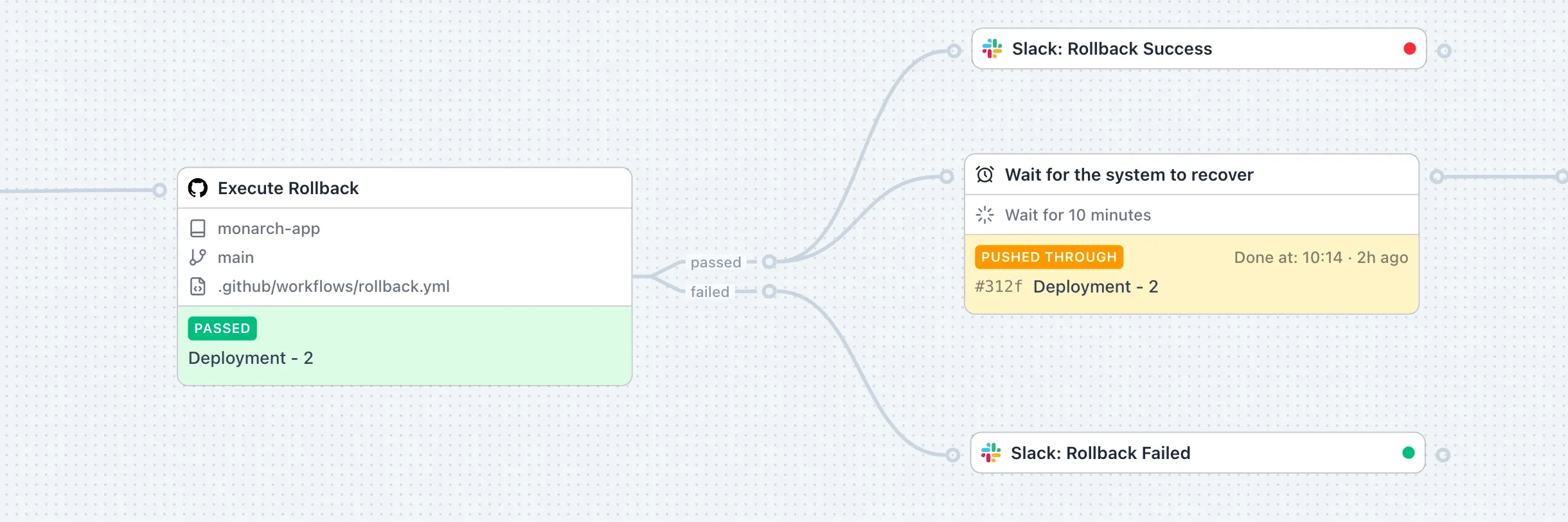
Subscribe to the passed channel to continue on success, or the failed channel to handle errors.
Output channels example
| Component | Channels | Description |
|---|---|---|
| GitHub runWorkflow | passed, failed | Routes based on workflow success or failure |
| Approval | approved, rejected | Routes based on approval decision |
| Merge | success, stopped, timeout | Routes based on merge outcome |
| Dash0 listIssues | clear, degraded, critical | Routes based on issue severity |
| PagerDuty listIncidents | clear, low, high | Routes based on incident urgency |