
Canvas
A canvas is the workspace where you design and run workflows in SuperPlane. It’s a visual graph of nodes connected by subscriptions that define how events flow between steps.
Think of a canvas as:
- A workspace for designing workflows visually
- A live system where multiple runs can execute simultaneously
- A graph that defines all possible execution paths
A single canvas can represent multiple possible workflows, depending on which paths events take through the graph. The canvas provides a place to model complex, event-driven workflows that span multiple tools, wait for human input, and run over extended periods of time.
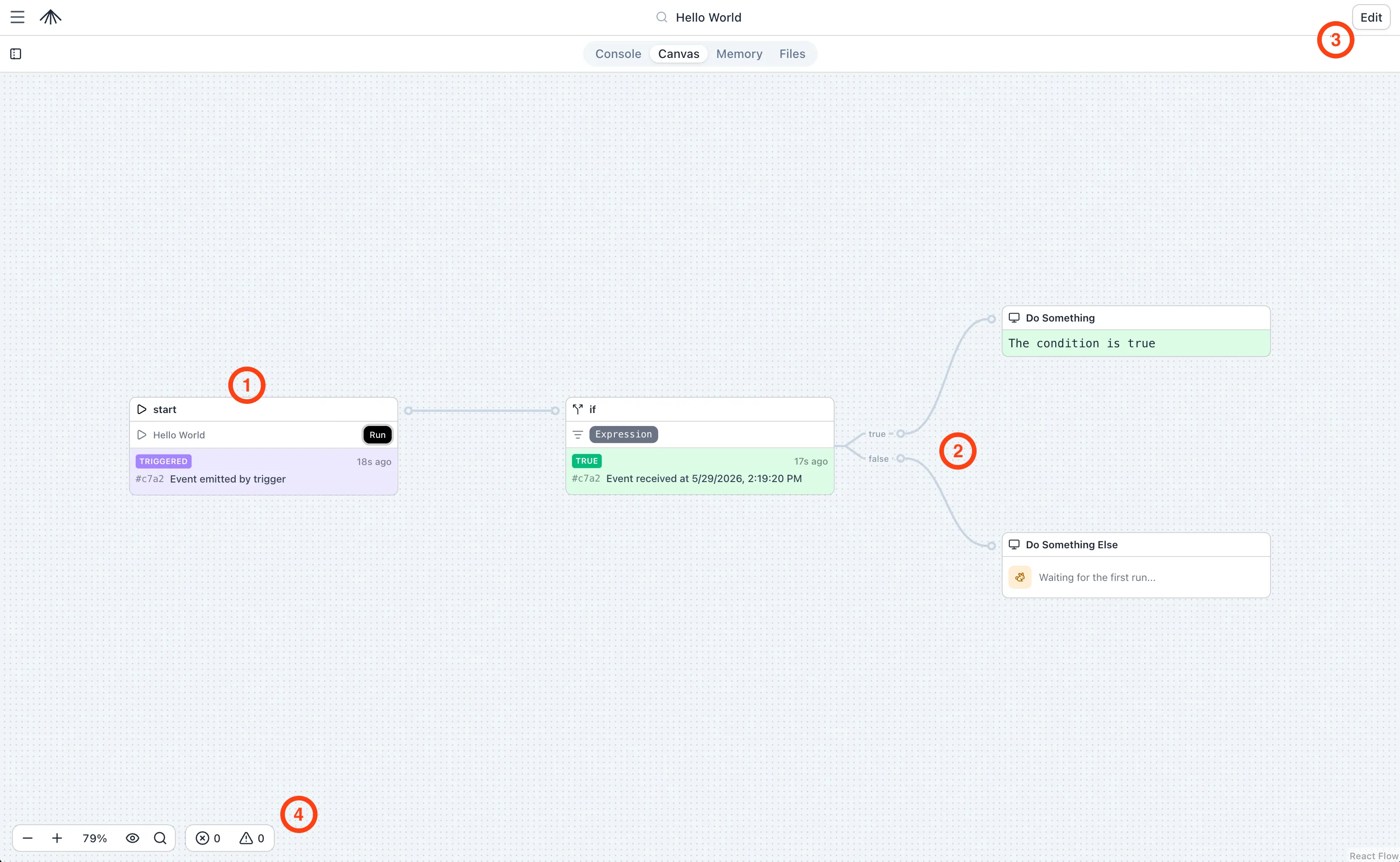
The canvas consists of:
- Nodes — Triggers and components. See Component Nodes.
- Connections — Indicate which node listens to which. See Data Flow.
- Edit — Edit the canvas nodes and connections.
- Helper toolbar — Navigation tools, select/pan mode, search.
Editing and Updating Canvases
Section titled “Editing and Updating Canvases”You can edit and update canvases in two ways:
Visual Editor (UI)
Section titled “Visual Editor (UI)”Use the visual editor to build and modify canvases interactively:
- Add nodes: Drag components from the component palette onto the canvas
- Connect nodes: Create subscriptions by connecting nodes together
- Configure nodes: Click on any node to edit its configuration
- Delete elements: Remove nodes or connections as needed
Changes are saved automatically, and you can see your workflow update in real-time.
Command Line (CLI)
Section titled “Command Line (CLI)”Use the SuperPlane CLI to manage an app canvas programmatically:
# Export a canvassuperplane apps canvas get <app_name> > my_canvas.yaml
# Edit the YAML file# ... make your changes ...
# Apply updatessuperplane apps canvas update -f my_canvas.yaml
Notes are sticky notes on the canvas for labels, reminders, or links. They do not run in the workflow, emit payloads, or connect to subscriptions.
Each note supports markdown text (up to 5000 characters).
To add a note, click the sticky-note button in the top-right toolbar.
Versioning
Section titled “Versioning”Canvases are versioned using a Git repository in the background. You iterate on changes in a staging area, commit when ready, and each commit becomes an immutable version on the main branch.
In the UI, versioned canvases expose an Edit mode and a Versioning view:
- Live version vs staging: The live version is what currently runs in production. When you edit, changes go to a staging layer first — like
git addbeforegit commit. - Commit: Saves your staged changes as a new version on the main branch and makes it live.
- Discard: Reset staging to match the live version, or discard uncommitted staged changes.
- Versions sidebar: View commit history and switch between past versions.
For CLI commands, see SuperPlane CLI.
Durable Execution
Section titled “Durable Execution”SuperPlane provides durable execution for your workflows, preserving state across steps and system restarts. For more details on how executions are tracked and managed, see Runs.
The Canvas Page
Section titled “The Canvas Page”Nodes and Connections
Section titled “Nodes and Connections”Nodes are instances of components. To add a node, click ”+ Components” and drag onto the canvas. Connections define how events flow between nodes — drag from a source node’s output channel to a target node.
Nodes show status badges (running, succeeded, failed) and key information from their latest payload. For details on components, see Component Nodes.
Payloads and Events
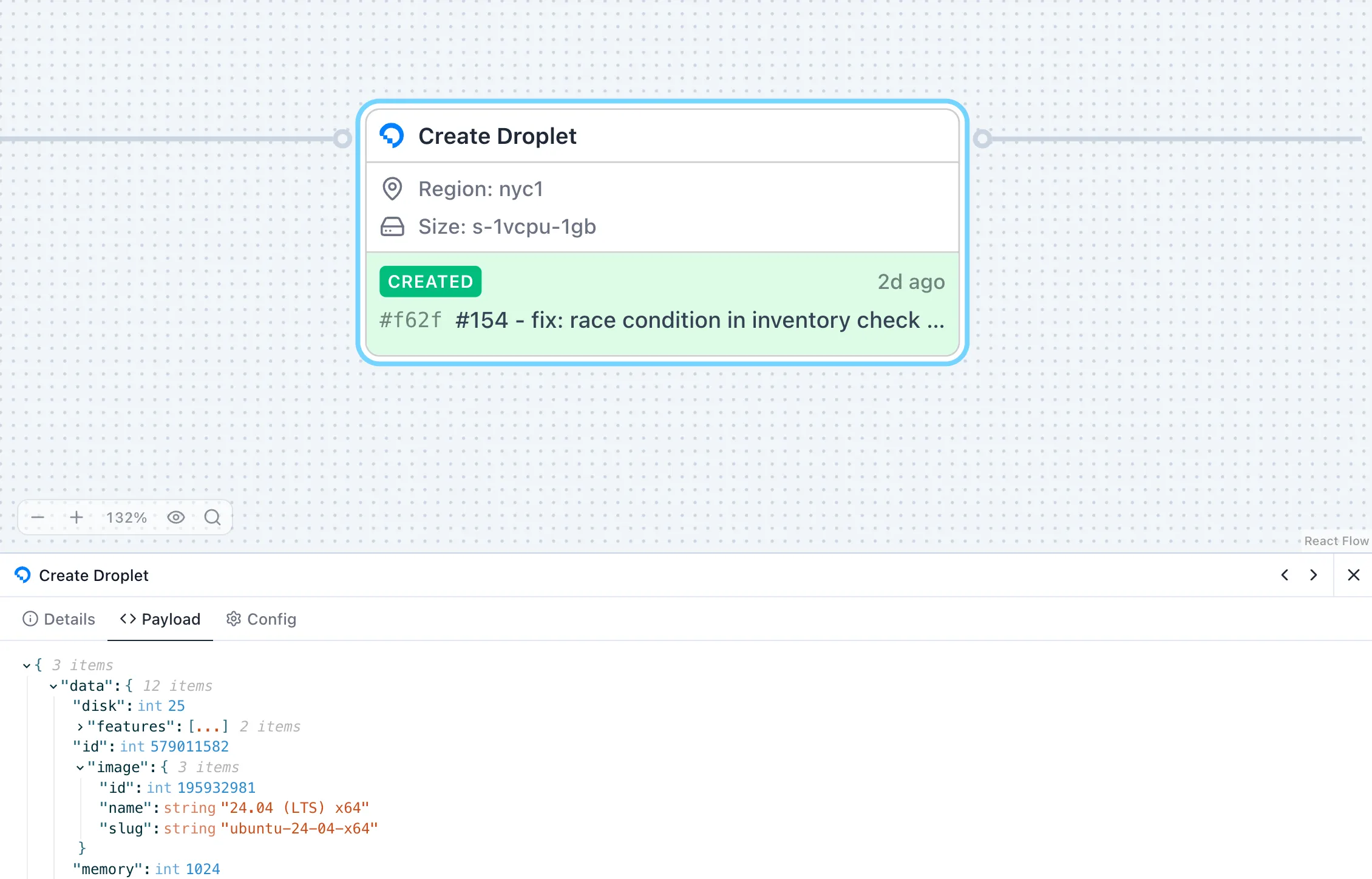
Section titled “Payloads and Events”Every node emits a payload — JSON data containing the results of its execution. Click any node and view the Payload tab to inspect it.
When configuring nodes, type {{ in expression fields to access payload data from upstream nodes.
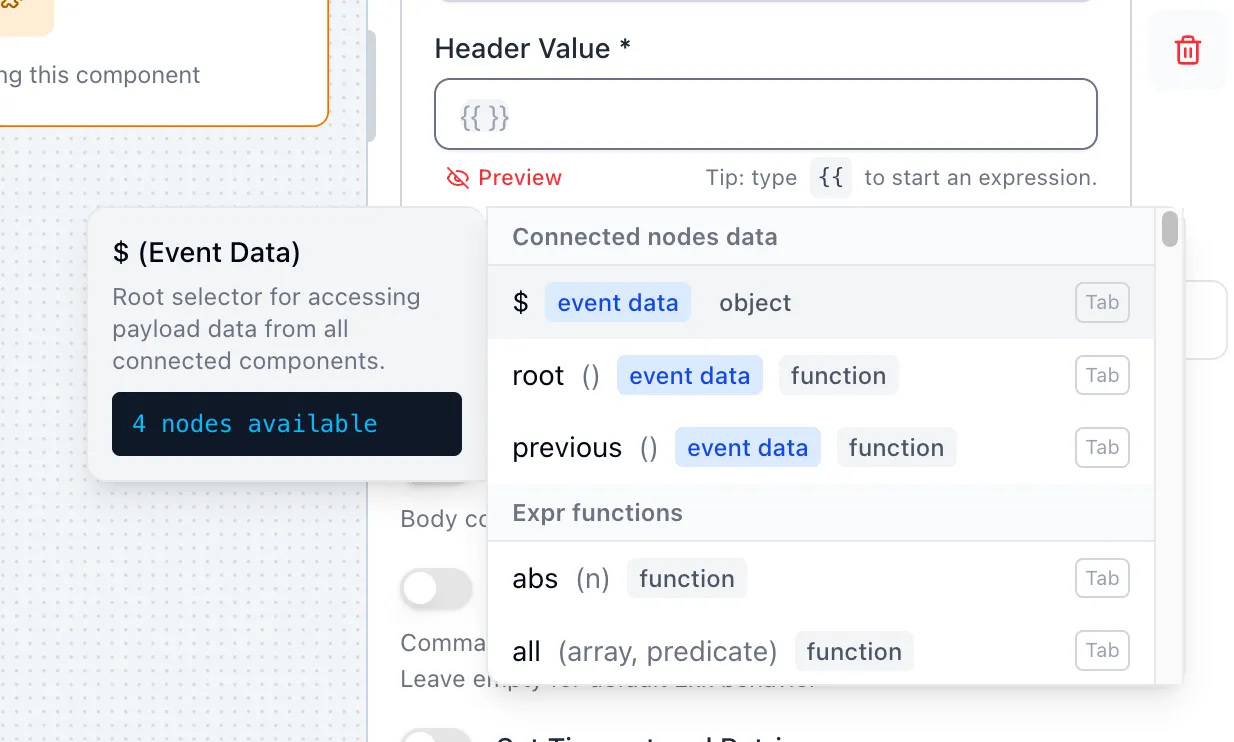
Use {{ … }} to insert payload data into text fields, or write bare expressions in condition fields (If / Filter). See Expressions.
Workflows and Runs
Section titled “Workflows and Runs”A single canvas can express multiple workflows depending on which trigger fires and which paths events take. Multiple runs execute simultaneously — the canvas updates in real-time as runs execute, with each node showing its current or most recent status.
Click any node to view its run history. Select a run item to see the full run chain showing all nodes that executed as part of that run.
Best Practices
Section titled “Best Practices”- Organize logically: Arrange related nodes together visually
- Use clear node names: Make it easy to understand what each node does
- Test incrementally: Build and test workflows step by step
- Check for errors: Review run history and node status regularly
For more details on data flow, see Data Flow. For component details, see Component Nodes.