
Quickstart
This quickstart guides you to your first “hello world” moment in SuperPlane: building a small workflow on a canvas, running it, and inspecting the resulting run, run items, and payloads.
You won’t need to connect any third-party services.
What you’ll build
Section titled “What you’ll build”A tiny workflow that:
- starts from a Manual Run
- fetches a random cat fact via HTTP Request
- branches with If (True/False output channels) based on the length of the cat fact
- ends with one of the No Operation nodes
Along the way you’ll learn the core mental model: nodes emit payloads, downstream nodes subscribe, and payloads accumulate into a message chain you can reference in expressions.
Prerequisites
Section titled “Prerequisites”- You can access the SuperPlane UI.
- You can create or open a canvas in a project/workspace.
Your first workflow (step-by-step)
Section titled “Your first workflow (step-by-step)”1) Create a canvas
Section titled “1) Create a canvas”Create a new canvas and name it Hello world.
2) Add the trigger: Manual Run
Section titled “2) Add the trigger: Manual Run”- Click “+ Components”.
- Add Manual Run to the canvas.
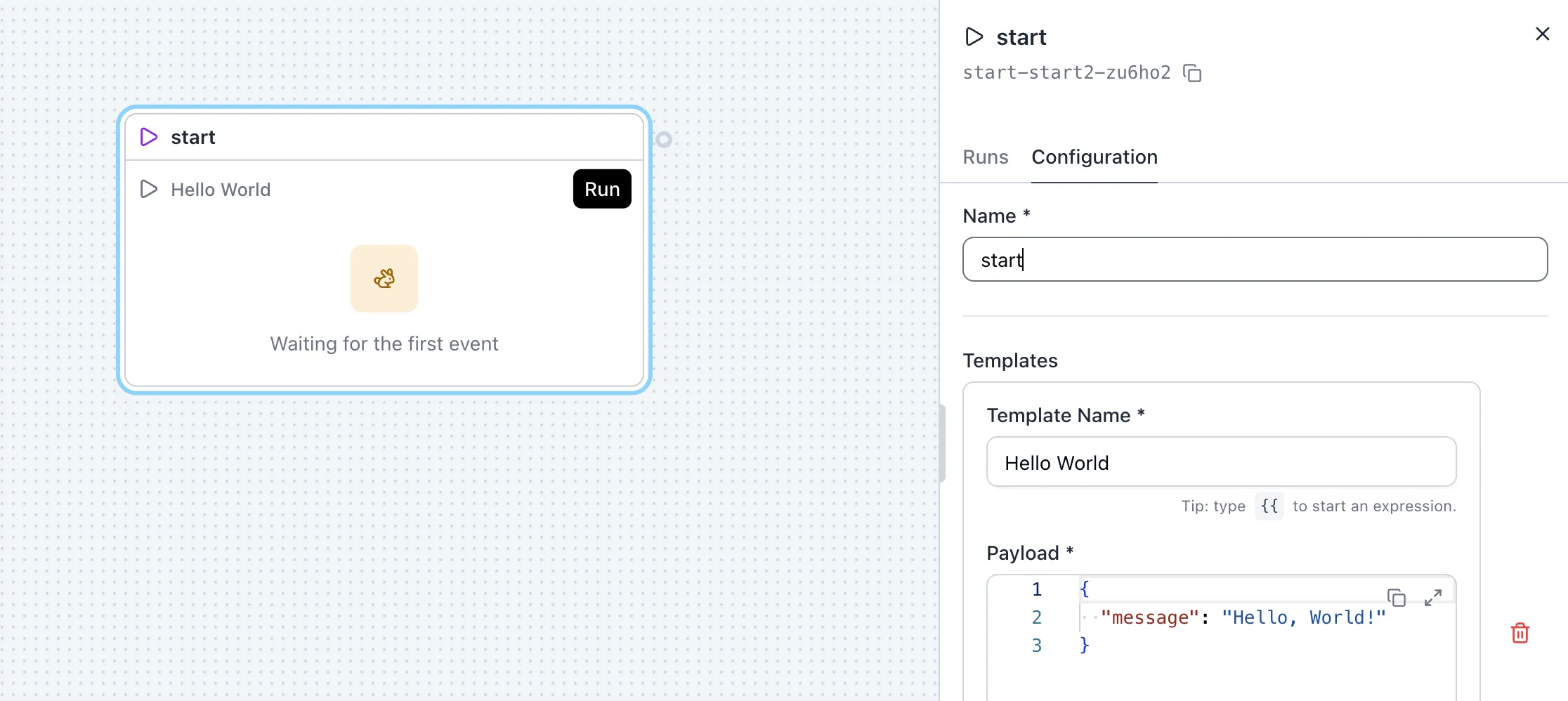
When you drop it on the canvas, it will typically show up as a start node with a Run button. This is the trigger that will start the workflow.
3) Add an action: HTTP Request
Section titled “3) Add an action: HTTP Request”- Add HTTP Request to the canvas.
- Connect Manual Run → HTTP Request (create a subscription).
- Name the node Get cat fact.
Configure the HTTP Request:
- Method:
GET - URL:
https://catfact.ninja/fact - Click Save button at the bottom of the configuration panel.
Next, click Run button on the manual trigger node to run the first HTTP request. Further nodes will use the response from this run to help us write expressions.
This endpoint will fetch a random cat fact and return JSON like:
{ "fact": "A cat will tremble or shiver when it is in extreme pain.", "length": 56}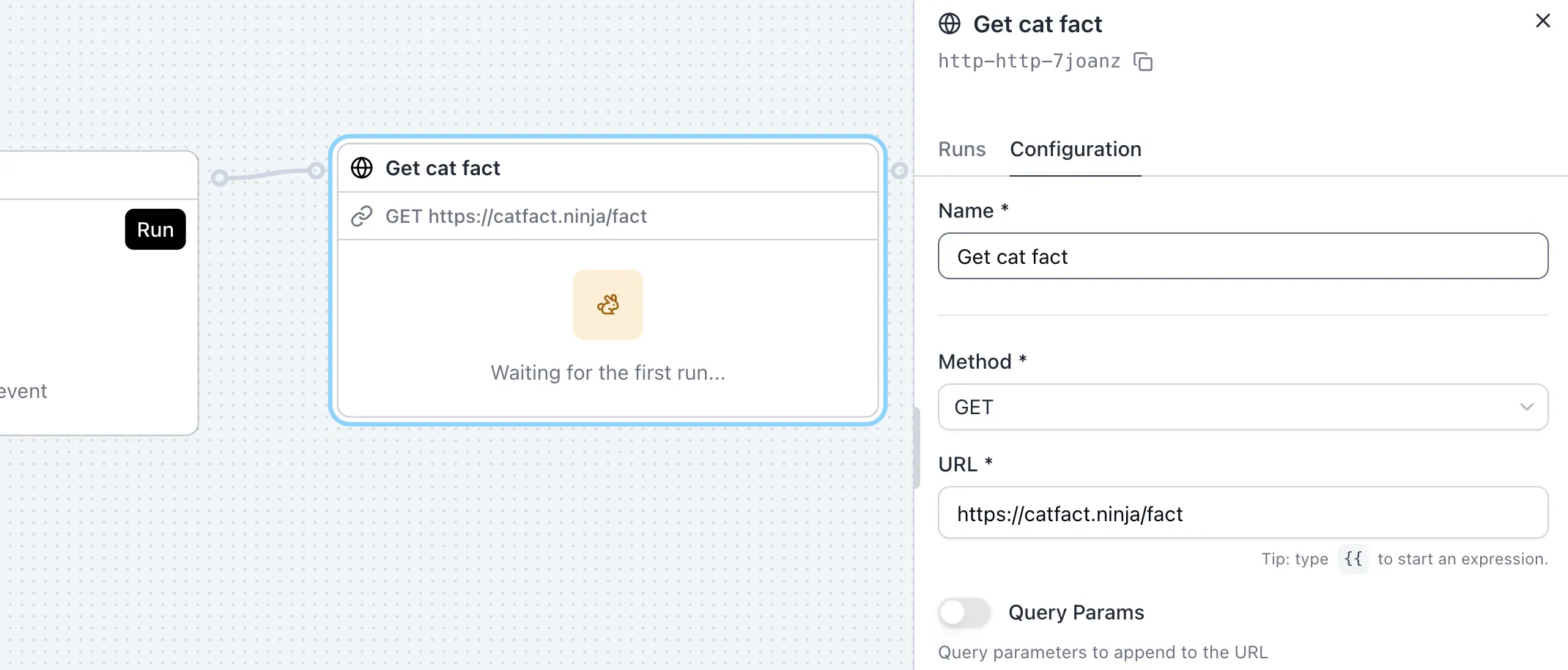
4) Add branching: If
Section titled “4) Add branching: If”- Add If to the canvas.
- Connect HTTP Request → If.
For illustration purposes we will determine whether the cat fact can fit in an old-school tweet or not.
Set the If expression to branch based on the API response:
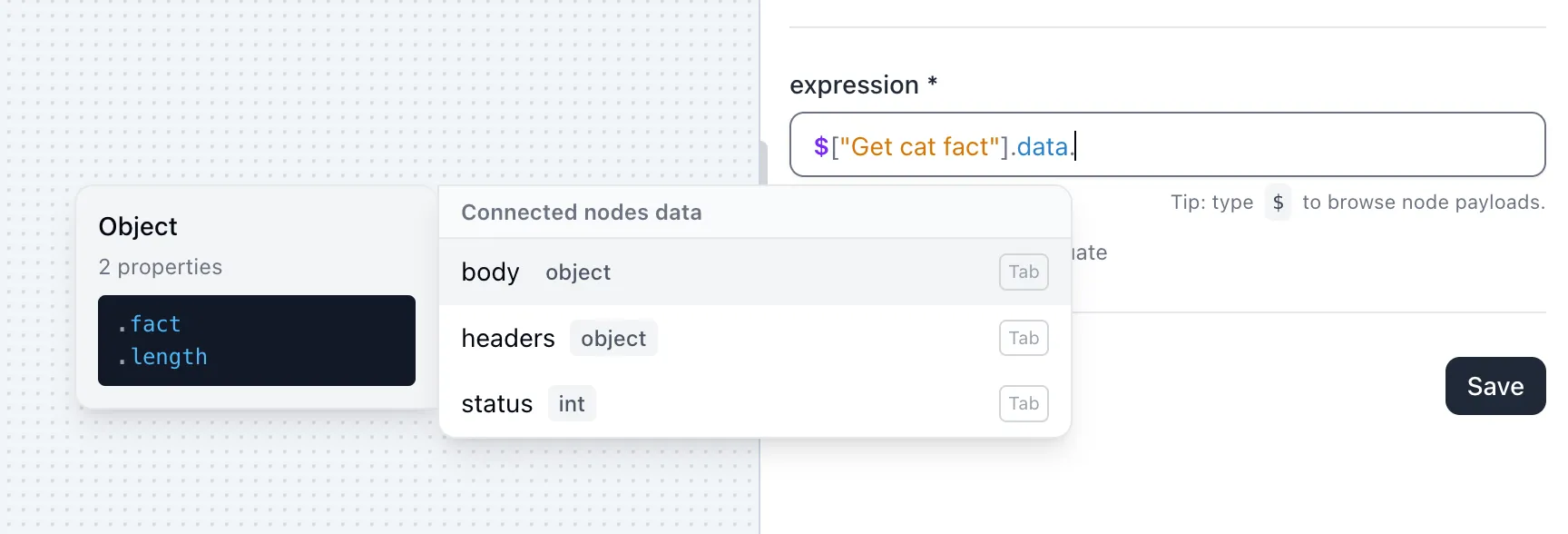
$['Get cat fact'].data.body.length <= 160As you type the expression, you’ll see that SuperPlane will provide you with a list of possible data attributes to choose from via autocompletion.
5) End both paths safely: No Operation
Section titled “5) End both paths safely: No Operation”Add two No Operation nodes:
- Connect If / True → No Operation and name it
fact is short. - Connect If / False → No Operation and name it
fact is long.
This keeps the tutorial completely safe: the workflow does real work (an HTTP call), but has no external side effects.
6) Run it
Section titled “6) Run it”- Click the Manual Run node.
- Click Run.
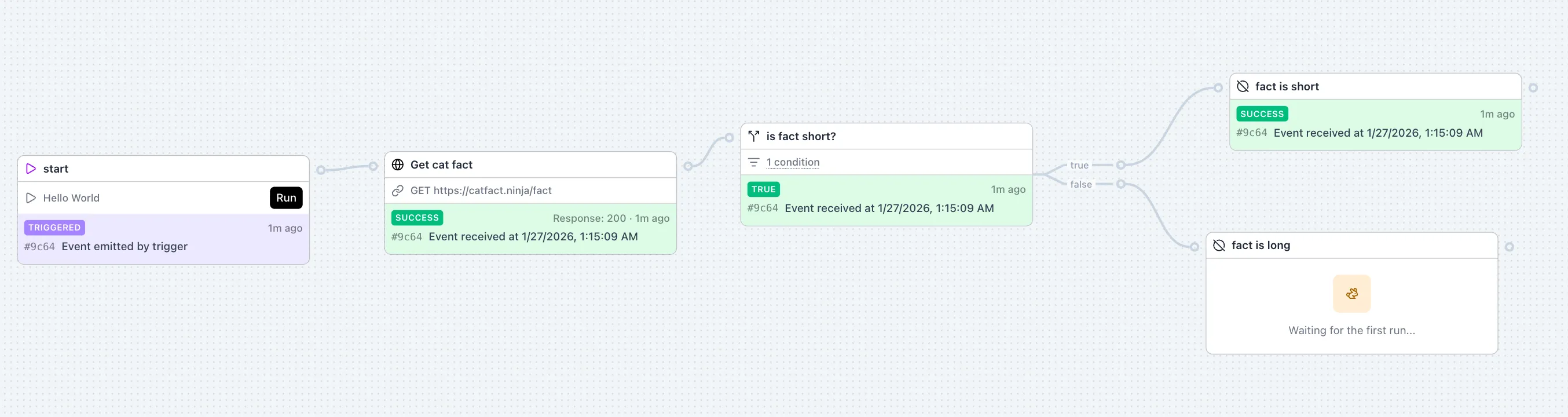
Run it a couple more times. You should see nodes update with statuses as each run item finishes.
Successfully running the workflow should look like this:
Inspect a run (payloads, history, message chain)
Section titled “Inspect a run (payloads, history, message chain)”You can inspect exactly what happened and what data flowed between nodes.
1) Open a run
Section titled “1) Open a run”- Click the last node in your workflow (for example, your
Post short messagenode). - In the sidebar, within the Runs tab, click the most recent event.
You’ll be taken to a run-focused view with:
- This run was triggered by (the root trigger, e.g.
start) - Steps (each node that executed in this run)
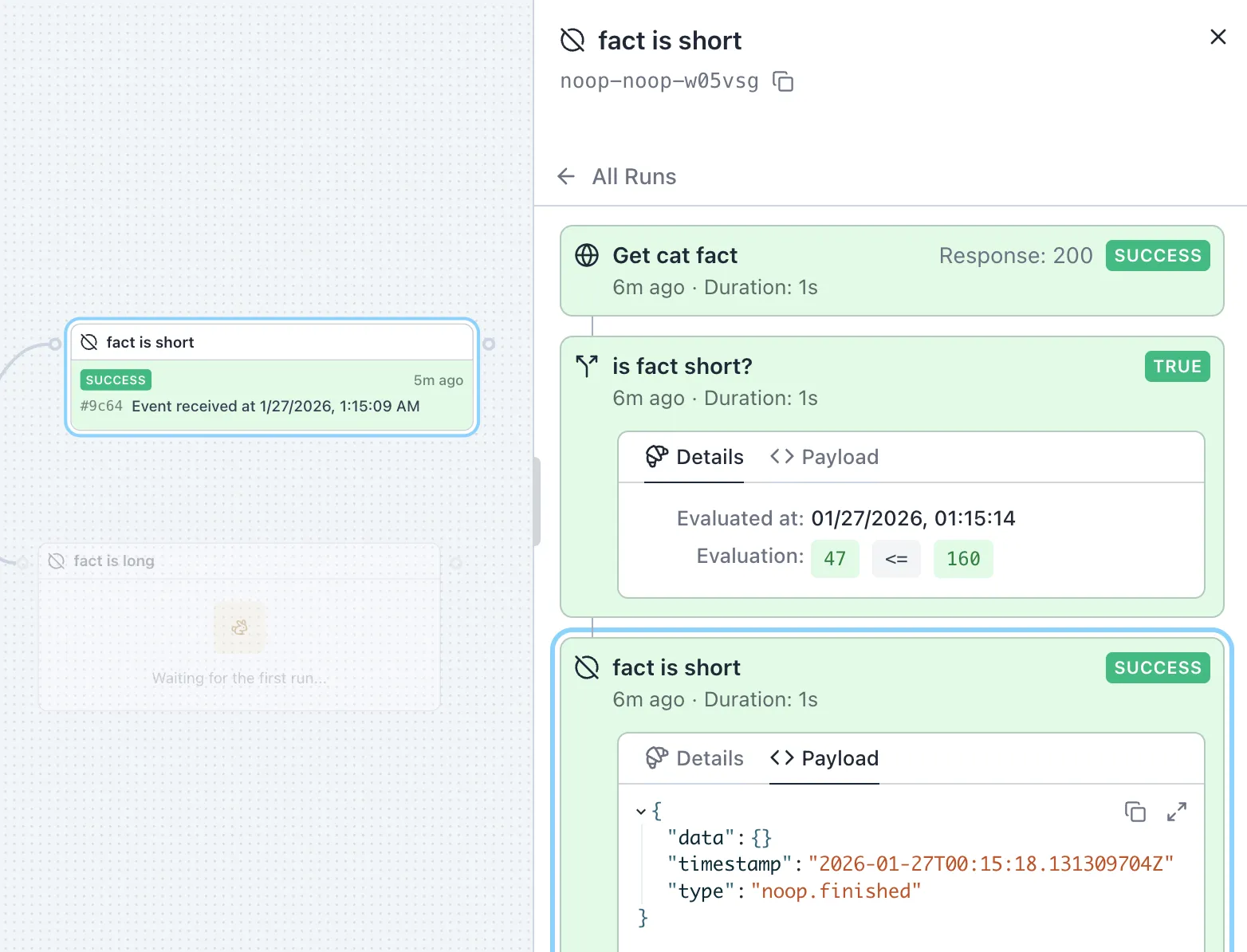
2) Explore steps (the run chain)
Section titled “2) Explore steps (the run chain)”In Steps, click different nodes (e.g. Get cat fact, if fact is short, your No Operation node) to see
their details for this run.
3) Inspect payloads
Section titled “3) Inspect payloads”For the HTTP Request step (your Get cat fact node), open Payload and look for:
data.status(HTTP status code)data.body.fact(the cat fact)data.body.length(length of the fact)
For any step, you can also open Details to see metadata like the event type and when it was emitted.
4) Understand the message chain
Section titled “4) Understand the message chain”As a run executes, each node’s output is added to a message chain. You can reference any upstream node by name in expressions:
$['Get cat fact'].data.body.length$['Get cat fact'].data.body.factFor a deeper explanation, see Data Flow and Expressions.
Troubleshooting
Section titled “Troubleshooting”- HTTP Request fails: Open the HTTP Request run item payload and check
data.statusanddata.error. Public APIs sometimes rate-limit; re-run after a minute if needed. - A node didn’t run: Verify the subscription lines on the canvas (Manual Run → HTTP Request → If), and ensure the No Operation nodes are connected to the correct If output channels.
Next steps
Section titled “Next steps”The “hello world” was not exactly a DevOps workflow, but it was a good way to get started with the fundamentals of SuperPlane.
In the next section, we’ll explore some real-world use cases.